Accounts Payable 1099-MISC and 1099-NEC Year-end |
  

|
Navigation: Year-end Processing >
Accounts Payable 1099-MISC and 1099-NEC Year-end |
|
You may be required to report 1099-MISC information to the IRS for qualifying vendors set up in Accounts Payable. GOLDPoint Systems automatically compiles all amounts at year-end and includes the total on the 1099-MISC forms you can print from IRS GOLD and send to vendors. The IRS designates the A/P payment amounts required for each 1099-MISC or 1099-NEC category. See the IRS website for more information. IRS GOLD in CIM GOLD will display those amounts in the applicable boxes on the 1099-MISC or 1099-NEC forms.
If GOLDPoint Systems should electronically file your Accounts Payable 1099-MISC or 1099-NEC information to the IRS, please email the following information to your GOLDPoint Systems account manager by Thursday, November 10, 2020:
1.Name, phone, and email of person(s) at your institution we can call or email if we need further information.
2.List of A/P client numbers for which you want us to transmit 1099-MISC or 1099-NEC data. Note: We do not need a list of your vendor numbers. However, if you have multiple A/P files or clients, please indicate which client numbers you want us to file. Generally, if you only have a single A/P file, then your default A/P client number is 0. Also, if you have multiple A/P clients that you want to combine into a single file to the IRS, please email or call us to let us know.
Quick Overview
It is important to understand how 1099-MISC and 1099-NEC data is pulled from the Accounts Payable system and how the actual 1099-MISC and 1099-NEC forms are created in IRS GOLD as well.
1.In November of each year and after each institution has notified GOLDPoint Systems of their intentions for IRS filing, a test will be performed to ensure that everything will run correctly when pulling 1099-MISC and 1099-NEC data from the Accounts Payable system. This is a good opportunity for each institution to verify their 1099-MISC/1099-NEC information before the official data pull, because a test report titled TEST A/P 1099-MISC or 1099-NEC Added to IRS GOLD for Year YYYY INST=#### CL=#### will be generated and made available in GOLDView for each institution to review.
2.In the beginning of January, GOLDPoint Systems will perform the official data pull from the Accounts Payable system and create the 1099-MISC and 1099-NEC forms in IRS GOLD. During this time, a report titled A/P 1099-MISC or 1099-NEC Added to IRS GOLD for Year YYYY INST=#### CL=#### will be generated and made available in GOLDView. An example of this report is shown at 1099-MISC_Report.
3.Once this is complete, it is the responsibility of each institution to print and send a copy of the 1099-MISC and 1099-NEC forms to each of their vendors by January 31st of each year, as is described below.
4.Finally, around March 5th of each year, GOLDPoint Systems will create a second official electronic files from IRS GOLD for the IRS and generate the IRS Transmittal of Information Returns cover sheets again. These cover sheets can be found in GOLDView with the Report Date of March 5th and by searching for the Report Title of *IRS* (include the asterisks).
The IRS Transmittal of Information Returns cover sheets will need to be signed and returned to GOLDPoint Systems before January 22nd for the first run and March 15th for the second run. GOLDPoint Systems will then transmit the electronic files to the IRS before the January 31st and March 31st deadlines. See Important Filing Date Information below for more information. |
|
Important Filing Date Information
GOLDPoint Systems sends you the PDF-fillable year-end forms to complete sometime in early to mid October. You must finish entering your options and signing the PDF to send it back to GOLDPoint Systems by October 30. Even if you are not using GOLDPoint Systems to report your Accounts Payable 1099-MISC and 1099-NEC information, you must still fill in the form and mark the applicable box that states you will not be filing through GOLDPoint Systems.
The following links will take you to an example of those forms:
•Client Year-end Tax Reporting Setup Forms - Loans and Accounts Payable
|
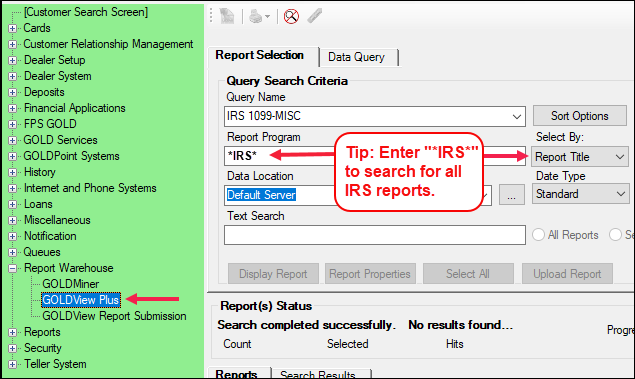
GOLDPoint Systems will generate a test report from the A/P system on November 21, 2020. This test is called TEST A/P 1099-MISC AND 1099-NEC Added to IRS GOLD for Year YYYY INST=#### CL=####. Shortly thereafter you will be notified by email when the test report for each A/P client is available in GOLDView Plus. GOLDView Plus can be found in CIM GOLD under Report Warehouse, as shown below:
 Click to expand.
This report shows the accounts that will be included in the 1099-MISC and 1099-NEC report to the IRS; the amount of the A/P payments, and other important information.
Please keep the test verification report for your own records. |
The official data pull from the A/P system to create 1099-MISC and 1099-NEC forms in IRS GOLD and generate the A/P 1099-MISC AND 1099-NEC Added to IRS GOLD for Year 2020 INST=#### CL=#### report will occur on January 8, 2021 (the A/P 1099-MISC information will only be pulled from A/P and has no relationship with other systems). Your institution will be notified when this report is available in GOLDView Plus. |
Each re-run requested after the initial pull on January 8, 2021, will require a work order and will cost $500.00. All A/P 1099-MISC and 1099-NEC forms previously placed in IRS GOLD will need to be deleted by your institution prior to re-run. This is required because a subsequent pull will create new A/P 1099-MISC and 1099-NEC forms in IRS GOLD, without deleting previously created forms. The last date for processing a re-run is January 14, 2021. Any corrections needed after this date must be manually entered in IRS GOLD by the institution.
For information on how you can delete many IRS forms at once, see the Mass Delete help in the IRS GOLD manual.
Also see the Correcting Forms through IRS GOLD topic in the IRS GOLD User's Guide. |
This is the final date for updating any 1099-MISC and 1099-NEC forms manually in IRS GOLD to be included in the January 20th electronic file creation. Any updates will need to be completed by 5:00 p.m. Mountain Standard Time. |
On the morning of Monday, January 20, 2021, GOLDPoint Systems will create the first official electronic files from IRS GOLD to be transmitted to the IRS. Additionally, GOLDPoint Systems will generate the IRS Transmittal of Information Returns cover sheets. These cover sheets can be found in GOLDView Plus by searching for the Report Title of *IRS* with the Report Date of January 20, 2021.
|
Please verify, sign, and return the IRS Transmittal of Information Returns cover sheet to GOLDPoint Systems by January 22, 2021. Please copy your Account Management Team. GOLDPoint Systems will then transmit the electronic files from IRS GOLD to the IRS prior to or on January 31, 2020 deadline. |
Your institution is responsible for providing a printed copy of the 1099-MISC and 1099-NEC tax information to A/P vendors by January 31, 2021. To print these forms for your vendors, do the following:
1.Go to CIM GOLD > GOLD Services > IRS GOLD > Forms screen.
2.Select the IRS Year: 2020; IRS Form: "1099-MISC" or "1099-NEC"; then click <Search>.
3.Select the forms you would like to print from the list view table.
a.The grid view contains a sortable column called TYPE that will contain A/P, indicating an Accounts Payable 1099-MISC or 1099-NEC form.
4.Click <Print Selection>. This will print the selected forms. |
GOLDPoint Systems transmits first electronic data file for 1099-MISC and 1099-NEC forms to the IRS. |
If your institution needs to run a second IRS batch because of creating new 1099-MISC or 1099-NEC forms in IRS GOLD or making corrections to previously submitted 1099-MISC/1099-NEC forms, then you will need to email your GOLDPoint System account manager. On March 5, 2020, GOLDPoint Systems will generate a second electronic file that will include any remaining, unfiled, or corrected 1099-MISC/1099-NEC forms in IRS GOLD. As with the initial electronic file creation on January 18th, GPS will place the "IRS Transmittal" form and the detail "IRS Report" in GOLDView Plus for verification and review. |
Sign and return the second IRS Transmittal form by March 19, 2021. This step may not be needed if your first run was successful and you have no corrections or new IRS forms that need submitted after the first run on January 31. |
After GOLDPoint Systems receives your signed IRS Transmittal cover sheet, we will process the second transmission to the IRS for all new or corrected 1099-MISC or 1099-NEC information created after the January 31 deadline. |
For a vendor to be included in year-end reporting, the vendor file in the Accounts Payable system must be set up correctly. Setting up the your Accounts Payable system and vendors requires five parts:
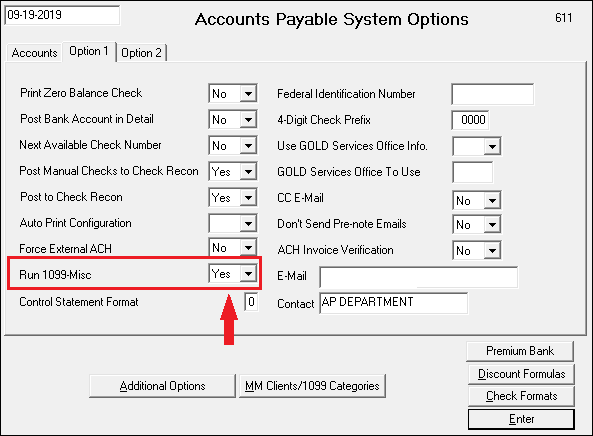
You must set the Run 1099-MISC field to "Yes." This field is found by navigating to the Financial Options system (Application 18), the Accounts Payable Options screen (function 3/4), and then Option 1 tab. See below:
 Click to expand.
Multiple A/P Clients With Same Federal Identification Number
If your institution has multiple A/P clients that share the same Federal Identification Number, you can set this field to "Mult" for client number 0, and any matching vendors for different clients will be combined in one 1099-MISC or 1099-NEC form. For example, if client 0 created invoices for ABC Janitorial, and client 1 also created invoices for ABC Janitorial, if the Run 1099-MISC field is set to "Mult," at year-end the system will combine the totals for the two vendors from different clients and create one 1099-MISC or 1099-NEC for that vendor.
|
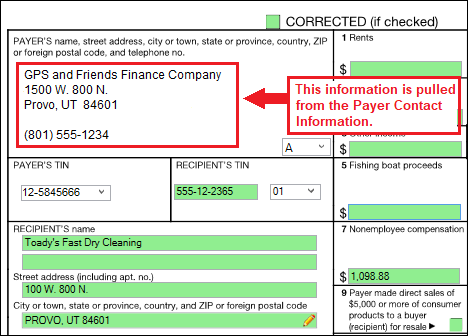
Ensure that your Payer Contact Information is up to date in the Accounts Payable options. This information is printed on the 1099-MISC or 1099-NEC form in IRS GOLD, as shown below:
To update your payer contact information:
1.Access the Financial Options system (Application 18) in GOLDVision. 2.Go to the Accounts Payable Options screen (function 4), then click <F10> or click <Payer Info>. The A/P Payer Contact Information screen will be displayed, as shown below. 3. Update any information on that screen, then click <Enter>.
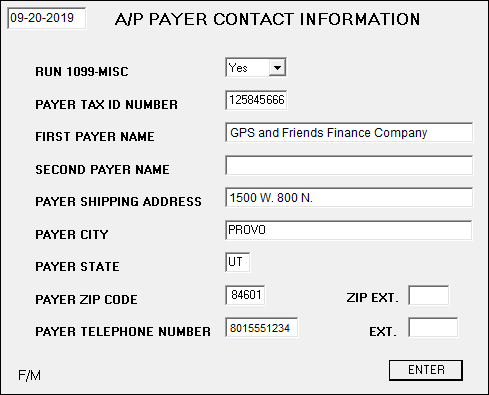
If your institution has more than one client set up, this information should be entered for client 0 (and Run 1099-MISC should be set to "Mult.") All other clients do not need to be set up with this information (but Run 1099-MISC should be set to "Yes" for all other clients other than 0).
Multiple A/P Clients With Different Federal Identification Numbers
Some institutions have more than one Federal Identification Number set up for different A/P clients. In these cases, client 0 will use the address entered on the A/P Payer Contact Information screen, but the other clients using a different EIN (also known as Federal Identification Number) will pull address information from a special IMAC table set up by GOLDPoint Systems. The system will pull the address for the applicable Federal Identification Number and display it on the 1099-MISC form.
|
You need to select which 1099 categories your institution uses in reporting 1099-MISC and 1099-NEC information. If you have more than one Accounts Payable client number, you will need to do this for each of your A/P clients. The 1099 categories are established on the Clients/Categories screen in the Financial Options system (Application 18), function 4, then <MM Clients/1099 Categories>), as shown below:
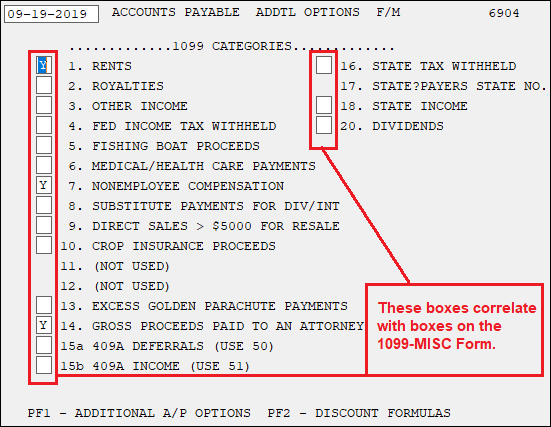 Click to expand.
Enter "Y" next to each of the categories your institution uses. These categories are shown in boxes on the 1099-MISC form, as shown below:
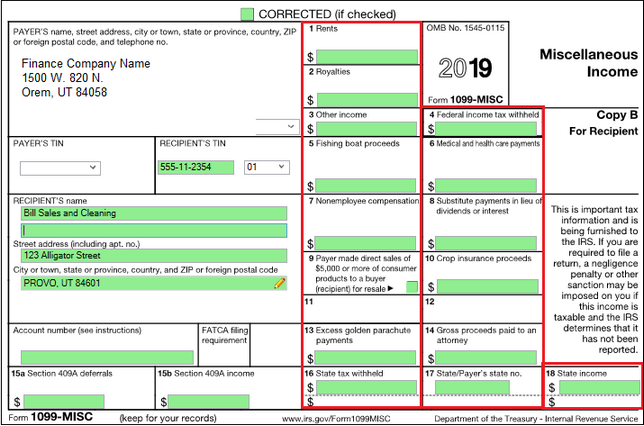 Click to expand.
Once those are set up, then users can enter a default category number in the Def 1099 Cat field on the Vendor Master Screen 2 (function 18, then enter a vendor number, then press <F1>) in Accounts Payable. See Part 2 below for more information on the significance of that field. |
Vendors that should be considered for 1099-MISC or 1099-NEC IRS reporting must have the Keep 1099 field set to "Y," as well as a category entered in the Def 1099 Cat field on the Vendor Master 2 screen (function 18, then <F1>) in Accounts Payable, as shown below:
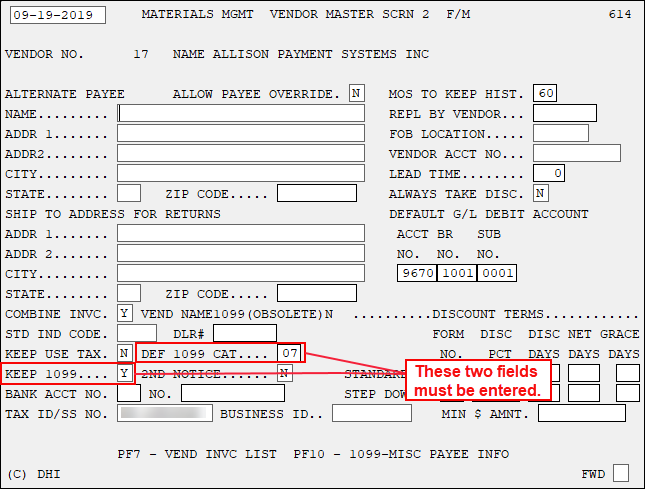 Click to enlarge.
The Def 1099 Cat field corresponds with the box on the 1099-MISC IRS form. The number you enter in this field will cause the system to put the total amount in the indicated box on the IRS form, as shown below:
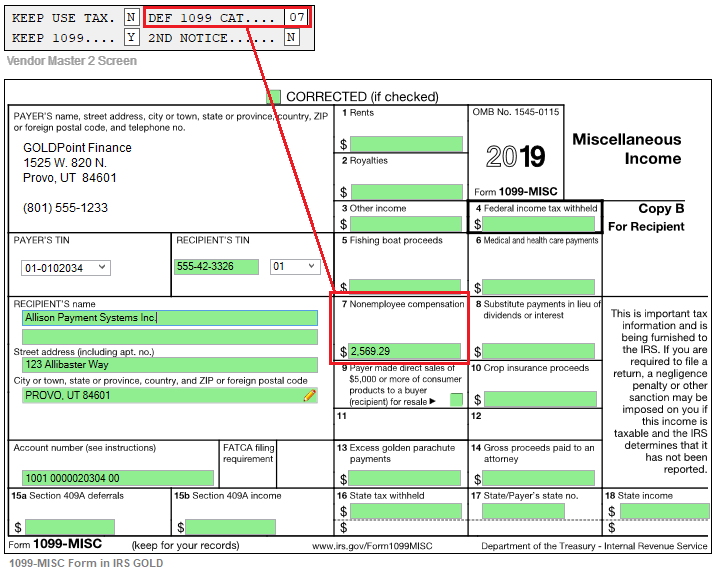 Click to expand.
This is the default entry for that vendor. When creating an invoice, you can enter a different 1099 category, if the invoice pertains to a different category than the default, as shown below:
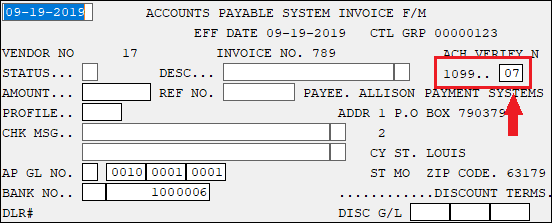 Invoice Processing Screen (function 30) in Accounts Payable System
See this section in the Accounts Payable manual for more information: section 2.5.2, Additional Vendor Master Screen |
You should also review the vendor's 1099 address information to make sure it is correct and up-to-date. IRS GOLD uses the address information entered on the 1099-MISC Payee Contact Information screen (function 18, then <F1>, then <F10>) in GOLDVision as the address to use on the 1099-MISC form, as shown below:
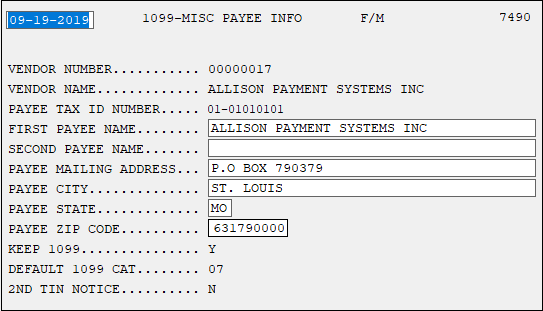 1099-MISC Payee Information Screen (Accounts Payable, then function 18, then <F1>, then <F10>)
See this section in the Accounts Payable manual for more information: section 2.5.5, 1099-MISC Payee Info Screen |
Because your 1099-MISC and 1099-NEC information will be sent to the IRS, it is vital that you verify and correct any discrepancies in the A/P system of your 1099-MISC and 1099-NEC amounts and vendor Tax ID numbers prior to the data pull on January 8th. We strongly suggest that you create reports to verify each of your Accounts Payable client files. The A/P Report Writer (function 63) and A/P Reports 4, 5, 11, and 12 can be used to validate Tax ID numbers on vendors (temporary, placeholder Tax ID numbers should be replaced with actual Tax ID numbers), review formatting of Tax ID numbers (EIN ##-#######, SSN ###-##-####), confirm assignment of 1099-MISC categories on invoices paid throughout the year (watch for missing or incorrect categories), and evaluate vendor mailing addresses.
The A/P 1099-MISC or 1099-NEC Added to IRS GOLD for Year YYYY INST=#### CL=#### report is available in GOLDView Plus for verification purposes as well. This report is generated and sent to GOLDView Plus during our test in November and during the live run. During the test run, this report will show all of the 1099-MISC and 1099-NEC forms that would have been created in IRS GOLD. During the live run, this report will list each 1099-MISC and 1099-NEC form that was created in IRS GOLD by Tax ID number and show each amount reported under the correct 1099-MISC Category.
Vendor Listing Report (Report #4)
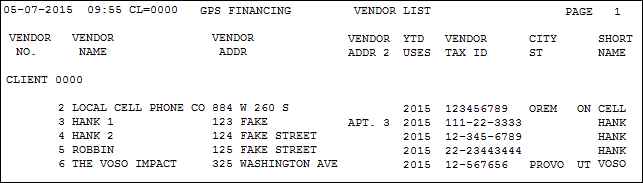
Vendor Listing Report (Report #4)
Vendor Invoice Listing Report (Report #5)
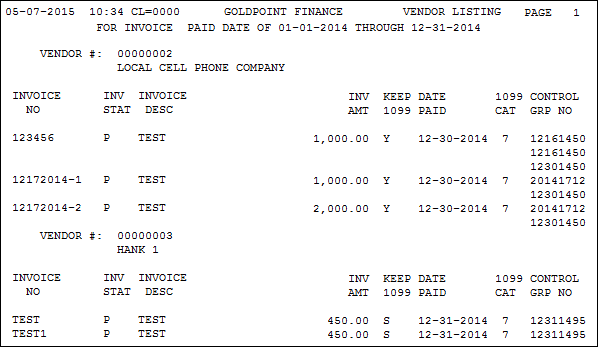
Vendor Invoice Listing Report (Report #5)
Invoice Listing Report (Report #11)
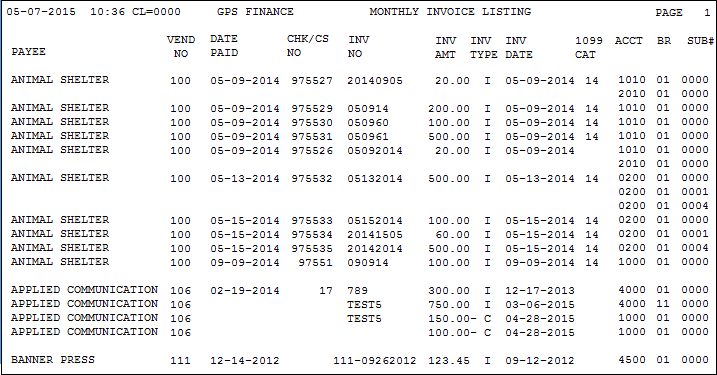
Monthly Invoice Listing Report (Report #11)
1099 Report (Report #12)
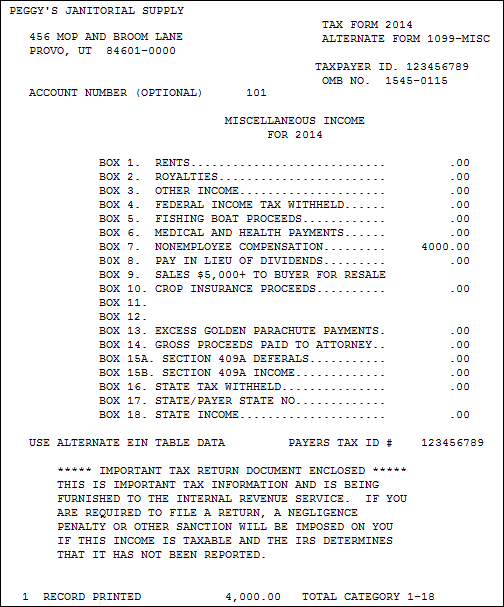
1099 Report (Report #12)
A/P 1099-MISC Added to IRS GOLD for Year YYYY INST=#### CL=####
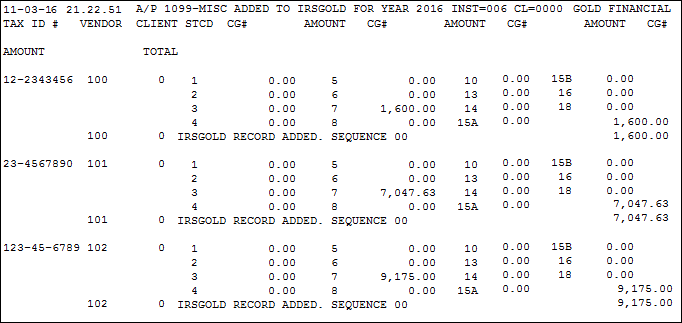
A/P 1099-MISC Added to IRS GOLD for Year YYYY INST=#### CL=####
Report Writer
There are many different Report Writers that can be created to verify 1099-MISC and 1099-NEC information. For more information on creating a Report Writer report, please refer to the Accounting Report Writer chapter in the Payroll Management manual.
An example of a Report Writer that could be useful for verifying paid invoices for each of your 1099-MISC and 1099-NEC vendors is shown below. The mnemonics, sorting options, and logic that were used to create the report are listed at the top of the example. Also, at the bottom of the Report Writer example listed below, we have listed some potential areas of concern that your institution may see when running this report and verifying 1099-MISC information.
For your convenience, Report Writer mnemonics have been added to allow you to create Report Writer reports to verify information on the 1099-MISC Payee Info screen (Accounts Payable > Vendor Master (function 18) > Additional Information (F1) > 1099-MISC Payee Info (F10)). These mnemonics are shown below.
Mnemonic |
Description |
PYNUMBER |
Payee Vendor Number |
PYNAME |
Payee Name |
PYNAME2 |
Payee Name 2 |
PYMADD |
Payee Address |
PYCITY |
Payee City |
PYST |
Payee State |
PYZIP |
Payee Zip |
As you are reviewing and verifying the information on these reports, if you come across invoices that are missing a 1099 category or if an invoice contains the incorrect 1099 category, you can make changes by going to Accounts Payable > Invoice Processing (function 30).
IMPORTANT
As you are verifying the total invoices paid to 1099 vendors using Report Writer or the other standard A/P reports, please keep in mind that many of the 1099-MISC categories only require reporting of amounts paid greater than $600.00. |


