|
You can set up recurring payments using the Payment Information screen, or by clicking the EZPay link at the bottom of the screen and setting up recurring payments from there.
You need to be aware of a few options that affect recurring payments.
•If the loan Frequency is anything greater than 12 (bi-weekly, every two weeks, weekly), the recurring payment must be done on the Due Date or days before.
•If your institution collects a fee for each recurring payment, you need to set up the General Ledger account for the fee to be credited to on the GOLD Services > General Ledger > G/L Account By Loan Type screen using the EZPay Fee field.
•If this loan has a modified payment schedule set up (using the Loans > Transactions > CP2 screen, Payment Schedule tab), the amount defaulted into the Amount field for recurring payments will reflect the amount from the payment schedule.
•If institution option FPRA is set up for your institution, recurring payments are set up on the Payment Information screen slightly differently. See the instructions for setting up recurring payments with and without FPRA option below for more information.
If the FPRA option (Use FPRA for Recurring ACH Payments) is set, then the Recurring Information tab is not displayed on the Loan Payment Information screen, and instead, the Recurring field group on the Loan Information tab looks like the following:
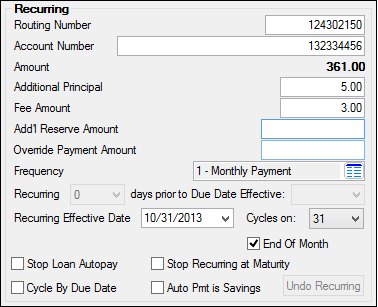
To set up recurring payments with the FPRA option, complete the following steps.
| 1. | If the Due Date is not today's date or in the future, change it to a date in the future. |
|
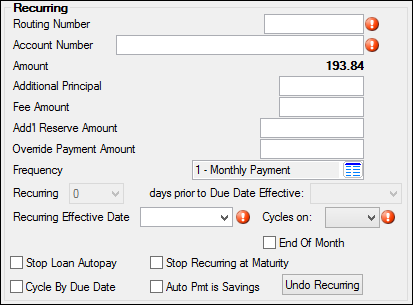
| 2. | At the bottom of the Recurring field group, click <Start Recurring>. The required fields will display an error provider icon  next to them, as shown below: next to them, as shown below: |
|
| 3. | Enter the Routing Number and Account Number of the financial institution for the recurring payment. After you click <Save Changes>, the system will notify you if the routing number entered is not an approved ABA routing number by displaying an error provider icon , with a pop-up error that says, "Bank Routing Number not on file." You will need to correct the routing number before you can save the recurring payment. |
F TIP: If this borrower already has a routing and transit number set up from previous transactions and entered on the ACH Accounts (FPEA) tab, you can quickly copy and paste that information into these fields.
|
| 4. | The amount in the P/I Constant field is defaulted into the Amount field and cannot be changed. However, you can enter any additional amount this borrower would like to go toward principal, fees, or reserve amount in the designated fields below the Amount field. Or you can enter an amount in the Override Payment Amount field to override this default amount. |
Note: If this loan has a modified payment schedule set up (using the Loans > Transactions > CP2 screen, Payment Schedule tab), the amount defaulted into the Amount field for recurring payments will reflect the amount from the payment schedule.
|
| 5. | The Frequency is for display only purposes in this field group. If you want to change the frequency, you should use the Frequency field at the top of the Loan Information tab. |
|
| 6. | Setting up the date when the recurring payment should take place varies depending on the payment Frequency of the account. |
•Use the Recurring...days prior to Due Date Effective field with the following loan frequencies:
13 - Floating Payment
26 - Bi-weekly Payment
52 - Weekly Payment
Select from the Recurring field the number of days prior to the Due Date Effective date that you want the recurring payment to occur.
For example, if you select "2" in the Recurring field, and the Due Date Effective date is set for "10/08/2013," then two days before the new effective Due Date, the system will debit the account entered above, and apply that amount to the loan payment.
•Use the Recurring Effective Date, Cycles on, and End Of Month fields for the following loan frequencies:
1 - Monthly Payment
2 - Bi-Monthly Payment
3 - Quarterly Payment
4 - Payment every 4 months
6 - Semi-Annual Payment
12 - Bi-Weekly Payment
24 - Semi-Monthly Payment
When one of the above loan frequencies is selected, the Recurring field is disabled and three new fields are displayed, as shown below:
Recurring Effective Date
Enter the date you want the recurring payment to occur every month in this field. If it's a monthly payment, is will be that date every month (e.g., 1, 2, 3, 4, etc.). If it's a bi-monthly payment, if will be the
Cycles on
This field displays the day on which recurring payments will be cycled.
Note: Action code 72 will stop an ACH payment from processing until after the action date. Once the action date has passed, the next time the auto payment is set to cycle, it will post the payment and then automatically drop the action code and date. Any attempts to post the payment prior to the action date will be rejected, and the message “NO ACH WITHDRAWALS BEFORE ACTION DATE” will appear on the Afterhours Processing Exceptions Listing (FPSRP013).
Example: A loan has a due date of 5/1. It is set up to cycle on the 10th of each month. An action code 72 with an action date of 6/1 is set up. On 5/10, the system would normally have attempted to process the ACH payment; however, because of the 6/1 action date, the system does not attempt to post the payment and displays it on the Afterhours Processing Exceptions Listing (FPSRP013). On the night of 6/10, the system will attempt to post the payment. Because the action date is in the past, it will post the payment and also delete the action code 72 and associated date.
End Of Month
If you check this box, the recurring loan payment will always occur on the last day of the month according to the frequency.
|
| 7. | Select any of the recurring option boxes, as described below: |
Stop Loan Autopay
|
Select this box if you want to stop processing this recurring payment without deleting the record from the system. You might not want to delete the recurring transaction, for example, if you believe the customer may want to resume it at another time. If the customer decides to resume the recurring payment, simply deselect this box.
|
Stop Recurring Maturity
|
Select this box if you want recurring payments to stop when the loan is past the maturity date. If this box is selected, when the loan is past the maturity date, the message “LOAN PAST MATURITY–PAYMENT NOT REQUESTED” will appear on the Afterhours Processing Exceptions Listing (FPSRP013).
Note: Recurring payment transactions will be stopped only if they are greater than the actual maturity date. Transactions effective on the maturity date will still be posted.
|
Cycle By Due Date
|
If you check this box, the Due Date will be used for the date the recurring payment is processed. When you check this box, the Recurring Effective Date fields become disabled, and the Recurring field and days prior to Due Date Effective fields become enabled. You should then select how many days before the Due Date this customer wants the automatic recurring payment processed.
|
Auto Pmt is Savings
|
Select this box if the Account Number entered for this recurring payment is a savings account.
|
|
| 8. | Click <Save Changes> to save the recurring payment record. In the Payments Due field group, the message "Recurring Payments Scheduled" will be displayed, as shown below. This message quickly notifies employees that one-time automatic payments cannot be set up, as well as important payment information when contacting borrowers. |
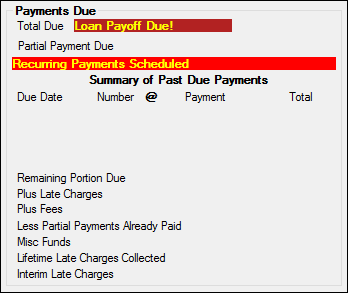
Additionally, the routing and account number you set up are saved on the ACH Accounts (FPEA) tab.
|
To set up recurring payments without the FPRA option, you can set up the automatic payment fields from either the Recurring field group on the Loan Information tab, or by completing the fields on the Recurring Information (FPRA) tab. We do not suggest you use both.
If you do use the Recurring field group on the Loan Information tab, the Due Date does not need to be current or in the future. Also, the Cycle Code (LNACYC) needs to be 90-99 for loan frequencies greater than 12 (as shown below).
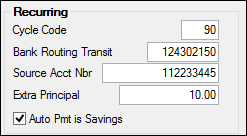
See the following definition of the Cycle Code for more information. For definitions of the fields on the Recurring Information tab, see the Recurring Information topic.
You can enter the following codes in the Cycle Code field to determine the cycle date of the recurring payment:
0
|
No auto payment.
|
1 to 31
|
Cycles on a specified day of the month. Enter 5, 10, 15, 20, 25, or 31, or contact GOLDPoint Systems. (These codes can be used for external or internal accounts.) Requires update functions 1-31.
|
61 to 89
|
Cycles 1 to 29 days after the due date. (These codes can be used for internal accounts only.) Requires update function 54.
|
90 to 99
|
Cycles 0 to 9 days before the due date. (These codes can be used for internal accounts only.) Requires update function 54.
|
Note: Action code 72 will stop an ACH payment from processing until after the action date. Once the action date has passed, the next time the auto payment is set to cycle, it will post the payment and then automatically drop the action code and date. Any attempts to post the payment prior to the action date will be rejected, and an error message will appear on the Afterhours Processing Exceptions Listing (FPSRP013).
If there is an action code 72 but no action date, the system treats the account as though there is not an action code 72.
Example: Loan has a due date of 5/1. It is set up to cycle on the 10th of each month. An action code 72 with an action date of 6/1 is set up. On 5/10, the system would normally have attempted to process the ACH payment; however, because of the 6/1 action date, the system does not attempt to post the payment and displays it on the Afterhours Processing Exceptions Listing (FPSRP013). On the night of 6/10, the system will attempt to post the payment. Because the action date is in the past, it will post the payment and also delete the action code 72 and associated date.
Note: GOLDPhone and Web payments initiated by the borrower are not stopped, regardless of whether or not there is an action code 72.
External or Internal Accounts (1 to 31). For external (outside) or internal checking/savings accounts, GOLDPoint Systems sets up a table (update function 31) to store the day of the month you want payments to cycle. Generally, this would be every day (1-31).
We recommend that payments are not processed the first three days of the month, due to the two-day window required by the Federal Reserve. The table can be set to process "before" or "after" a weekend or holiday. We suggest you use "after" for the 1st, 2nd , and 3rd of the month, and "before" for the rest of the month.
If you request payments a day or two before the effective date so you can offset the loan credit based on your money coming back from the Federal Reserve, still follow the above recommendation.
If, for some reason, you need to cycle auto payments on another day, you must inform GOLDPoint Systems through a work order of the day you want to use. GOLDPoint Systems must change the table.
WARNING: Payments are processed on the specific date regardless of the due date on the loan. This provides the ability for a borrower to be paid ahead. Example: A loan is set up to cycle on the 5th of each month. Each month the payment will be processed on the 5th , so if on June 5 a loan has a due date of 7-5, the payment will be processed and the due date will roll to 8-5. (The borrower continues to be paid ahead by one month.)
Internal Accounts Only (61 to 89). For internal checking/savings accounts only, you can set up the payment to cycle 1 to 29 days after the due date. Plus, the system will retry the transmission every night until a payment is received from the account. Retries will only function with internal accounts. The code you enter is 60 plus 1 to 29 days after the due date. Thus, if you wanted to cycle on the fifth day after the due date, you would enter "65" in the Cycle field. To cycle on the loan due date, use code 90 below.
Internal Accounts Only (90 to 99). For internal checking/savings accounts only, you can set up the payment to cycle on the due date or 1 to 9 days before the due date. Like the previous cycle method, the system will retry the transmission every night until a payment is received from an internal account. The code you enter is 90 plus 0 to 9 days before the due date. Thus, code 90 would cycle on the due date and code 95 would cycle 5 days before the due date. (See Options information here.)
WARNING: If you have a delinquency situation (customer continually doesn’t have enough funds in checking account), you will probably want to delete the autopay function (delete the cycle). Remember, if you don’t do this, the system will continually attempt to pull funds on the cycle date. At that time, the system also posts the payment to the loan. This would then require that you reverse the payment once you are notified that the auto payment rejected.
WARNING: The following hold codes will stop the system from attempting to pull funds:
Hold Code
|
Description
|
4
|
Bankruptcy - Chapter 7 or 11
|
5
|
Bankruptcy - Chapter 13
|
6
|
Deed in lieu of foreclosure
|
7
|
Legal hold - foreclosure
|
8
|
Reinstatement plan in effect
|
9
|
Legal hold - foreclosure
|
27
|
Loan in default
|
48
|
Loan to collect cash payment only
|
|
|
|
