New Security Option for Approval Screen |
  

|
Navigation: GOLDTrak PC What's New > GOLDTrak Version 7.8.28 - 7.8.39 >
New Security Option for Approval Screen |
|
CMP: 8834
We have created a new security option for the Approval III screen. This new option allows three levels of security to sign loan amount approvals, not just one or two.
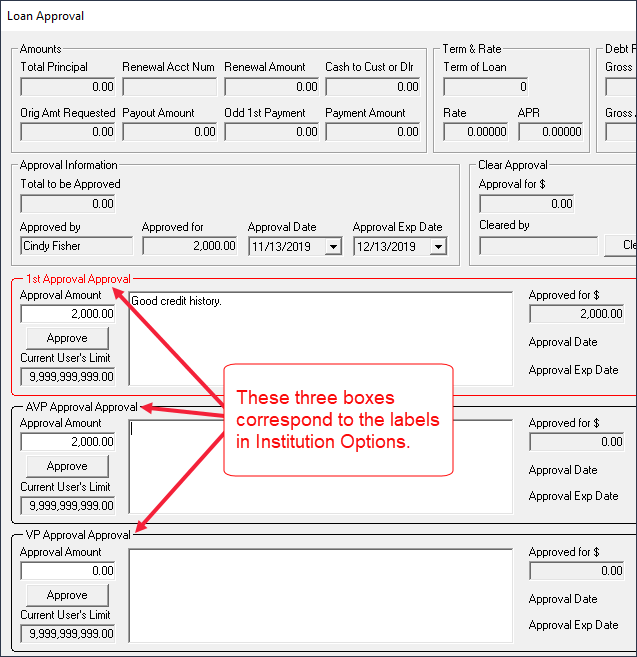
On the Approval III screen, there are three approval areas. There is always an "Approval" section and two other sections that have customizable names, such as "AVP Approval" and "VP Approval" sections. Those are the default labels if a custom label has not been entered, as will be described later.
The latter two approval areas are available to users depending on their group security. There are corresponding security bits that determine if these sections are active/available when a user accesses the screen. For example, if a user belongs to a security group that has the AVP security bit checked, then the AVP Approval section is made available to that user on the Approval III screen.
Problem: If either of the AVP or VP security bits are checked, the Approval section is grayed out and made unavailable. Only if both the AVP and VP security bits are not checked in the security group for a user will the Approval section be active for that user. One institution requires that three levels of approval be required on loans more than a set amount (such as $15,000). Therefore, we adjusted our system as follows.
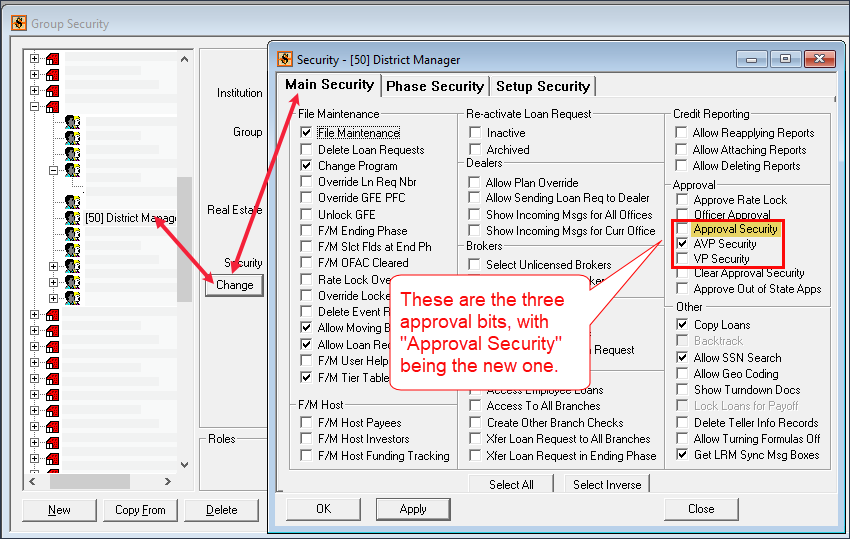
Solution: We have created a new security bit, Approval Security, for group security that when set, can open that first approval level. This option has been added to the Group Security screen, then click the group (profile) who you want to allow approval levels. The Group Security screen is found under Institution Setup > Security Groups in GTPC Setup, then find and select a person in the left tree, then click <Change> to open the Security screen, as shown below.
Click to expand.
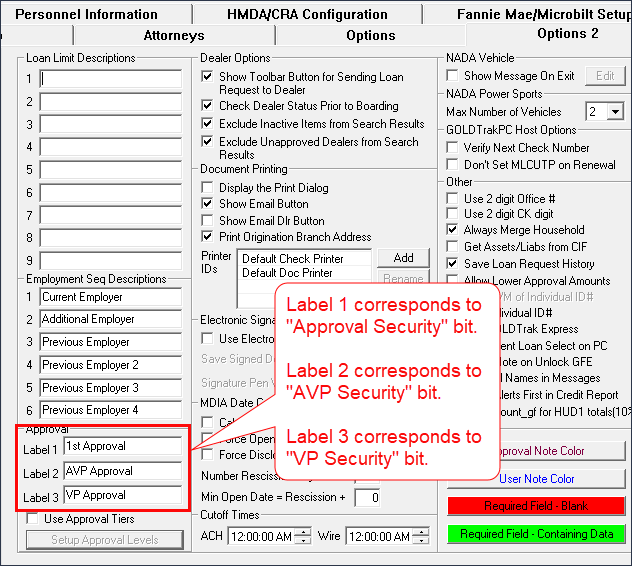
We have also added a new custom label for that new security bit in the Approval section of the Options 2 tab in GOLDTrak PC Setup > Institution Setup > Institution/Office Setup, as shown below:
Click to expand.
Notes about the new security field:
•The new security field will be disabled unless either of the other two approval security fields are checked. If one is checked, the button becomes active.
•When the new field is unchecked, the other two fields operate as they always have.
•If the label field corresponding to the new security field is empty, the default field name will be "Approval Security."
Once you close out of that screen, the changes can be viewed in GOLDTrak PC as soon as someone clicks <Refresh> at the top of the GOLDTrak PC application.
Click to expand.