New GTPC Option for Printing Documents After Funding |
  

|
Navigation: GOLDTrak PC What's New > GOLDTrak Version 7.8.28 - 7.8.39 >
New GTPC Option for Printing Documents After Funding |
|
CMP: 3211
We have added a new institution option in GOLDTrak PC Setup that allows users to go back into a loan once it’s been funded and print documents. The print date and time are updated accordingly, as shown below:
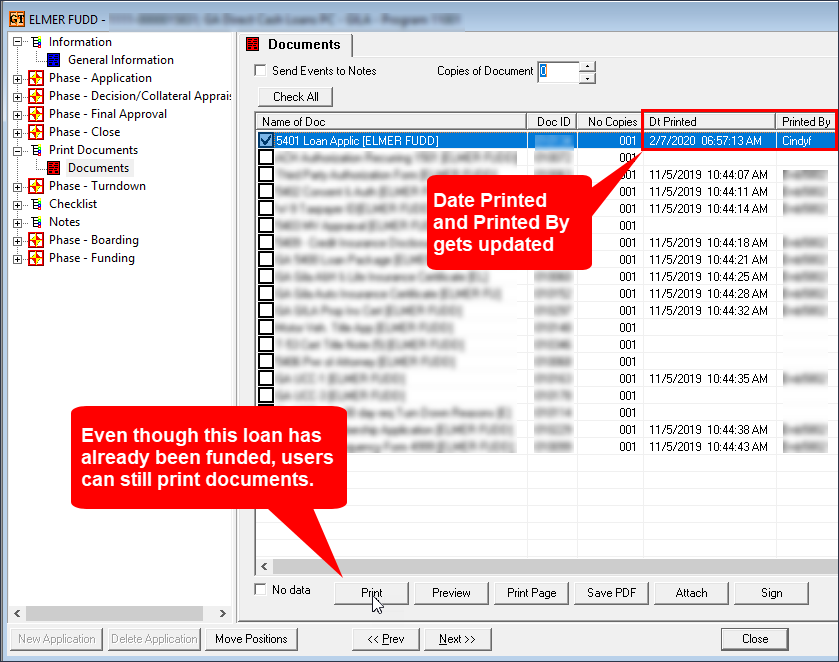
GOLDTrak Application Showing Documents Screen with <Print> Button Enabled
Users attached to groups will need at least File Maintenance Security (FILE_MAINTAIN_UG) to be able to print documents from inquiry mode. See example below of the security option that must be set up for the group in GOLDTrak PC Setup:
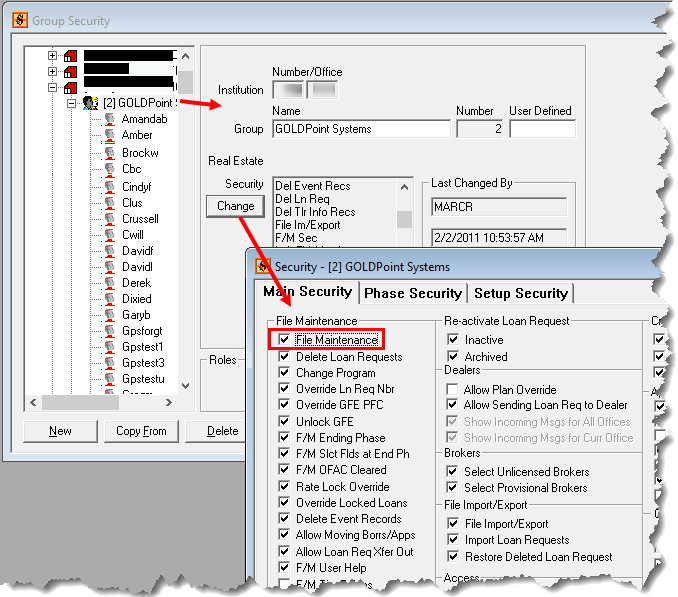
GOLDTrak PC Setup > Institution Setup > Security Groups Screen (after selecting a group, then clicking <Change>)
Setup
To set this new option, complete the following steps:
1.Open GOLDTrak PC Setup.
2.Go to Institution Setup > Institution/Office Setup > Office Security Group List.
3.Right-click on the list and select "Setup List Columns." The List Control Column Setup dialog box appears.
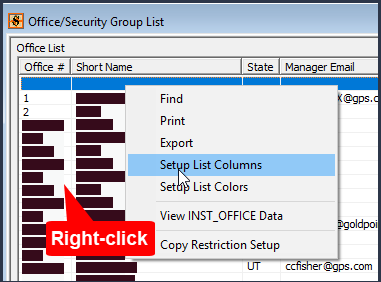
4.In the Columns Available list, scroll to find the End Phase Printing column (or the PRINT_END_PHASE_IO if Field Names radio button is selected). Double-click it to move it from the right to the left Columns to Use.
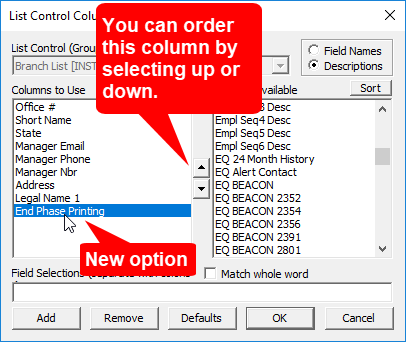
5.Click <OK> to close the dialog box.
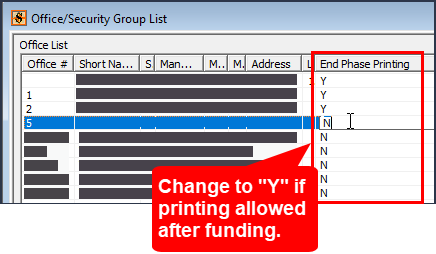
6.The columns will re-sort. Scroll to find the End Phase Printing column, and for any or all offices at that institution, you can change it from “N” to “Y” if you want that feature.