The Loan Information tab on the Payment Information screen is used to set up recurring payments or change the payment frequency of a selected loan (only for interest-bearing loans). See the following example of this tab, followed by descriptions of the fields on this tab.
Note: This tab may look different depending on whether you have the FPRA option set for your institution. See the Recurring field group for more information.
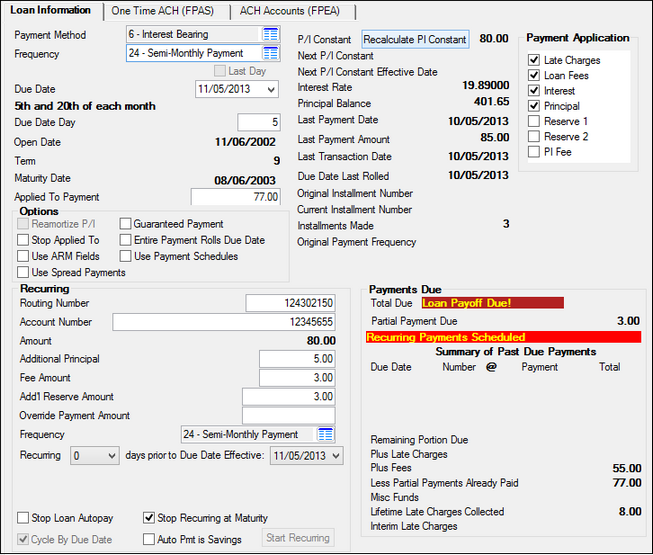
Loans > Account Information > Payment Information Screen
Field |
Description |
||||||||||||
|---|---|---|---|---|---|---|---|---|---|---|---|---|---|
Payment Method
Mnemonic: LNPMTH |
This field displays the payment method code. The payment method code determines how to calculate interest and what rules to follow in processing the loan account. This field is pulled from the Loans > Account Information > Account Detail screen.
You can only change the loan frequency for loans with certain payment methods. See the Frequency definition below for more information. |
||||||||||||
|
Mnemonic: LNFREQ |
If this is an interest-bearing loan (payment method 6) you can use this field to change the frequency of payments for the borrower.
When you change the frequency of a loan, you must first click
When recalculating the principal and interest payment based on a new payment frequency, the system takes into account the number of days interest and the number of days in the payment period, as well as the remaining balance on the loan (Principal Balance) and the number of payments remaining until the loan reaches maturity.
Additionally, the Due Date will be affected accordingly when changing the loan frequency, as will the Total Amount Due and Monthly Payment fields on EZPay screen.
The Last Day checkbox is also important if using the Floating payment frequency (13).
Also, the Remaining Payments til Maturity on the Loans > Transactions > CP2 screen will also change based on the Frequency you select. (For example, if a loan has 5 payments left and you change the Frequency from monthly to weekly, the Remaining Payments til Maturity will increase to 20.)
For more detailed information concerning each payment frequency, see the following table:
|
||||||||||||
Last Day
Mnemonic: LNDUDT |
Check this box if this borrower wants to use the last day of the month, rather than the fourth occurrence of the day of the week of the month, as the loan payment Due Date. This option is only available for Floating frequencies, as described above. |
||||||||||||
Due Date
Mnemonic: LNDUDT |
This is the current due date of the loan. Changing the loan frequency will affect this field. For example, if the loan frequency is changed from monthly to weekly, the day of the week will be displayed below this field to indicate the loan is due every week on that day of the week (see example below). Also, the next Due Date will reflect the new weekly frequency date.
|
||||||||||||
Due Date Day
Mnemonic: LNDUDY |
This field is used for the due date of the next regular payment when you want to have the due date be the last day of the month and the end of the current month is less than 30 days. It is used in conjunction with the Due Date field.
For example, if you tried to set up the due date to be the last day of February, the last day that you could enter in the Due Date field is February 28. The system would not allow you to enter 31 days in February because that is an invalid date. Thus, on succeeding months the due date would appear as the 28th of the month. The Due Date Day field allows you to override that date making the due date as the 31st of each subsequent month.
On months that have 31 days, the system will automatically place 31 in the Due Date Day field. In the months that follow, the system will make the due date the last day of the month, even when there are only 30 days in the month. This field is file maintainable, but the system will insert default settings.
If option OP06 MDDD is set, file maintaining the Due Date Day field will automatically change the day portion of the Due Date field, unless the loan is bi-weekly or the resulting due date would be invalid.
If institution option OP08 DD27 is set, the Due Date Day will not be allowed to be greater than 27. |
||||||||||||
Open Date
Mnemonic: LNOPND |
This field displays the date the loan was opened or funded. The system automatically supplies this information when a new loan (680 tran code) is performed. For precomputed loans (payment method 3), this field is one of the keys for calculating rebates. |
||||||||||||
Term
Mnemonic: LNTERM |
This is the remaining term of loan payments to pay off this loan. The term is in months, so if the loan Frequency is changed to something other than months, this number still reflects the number of months to pay off the loan. |
||||||||||||
Maturity Date
Mnemonic: LNMATD |
This field contains the date the last payment is due and the loan should be paid off. It is pulled from the Maturity Date field on the Loan Account Detail screen.
An option |
||||||||||||
Applied To Payment
Mnemonic: LNPRTL |
This is any extra amount paid by the borrower, or any amount that did not add up to a full payment. If the amount is less than a full payment, the due date may not roll (depending on the Entire Payment Rolls Due Date option described below), but the money will be applied to the areas designated by the Payment Application code, such as Principal, Interest, etc. The amount paid toward the payment due is automatically stored in the Applied To Payment field and kept track of here until the full payment is satisfied. When the due date rolls, the field is cleared out. This field is also used in determining whether a late charge should be assessed when you are using delinquency grading and collecting late charges before principal and interest.
Note: There is a Curtailment from Partial Payment transaction (tran code 2610-04) that will debit partial payments (tran code 500) and automatically credit the principal balance (tran code 510) as a curtailment at the same time. The same edits (SOV, TOV, etc.) are used as with all other field credit (510) and field debit (500) transactions. This transaction processes each transaction separately, and they will appear in history as two separate transactions. |
||||||||||||
P/I Constant
Mnemonic: LNPICN |
This is the regular monthly payment on the loan. This amount includes principal and any interest. If you change the Frequency for this loan and click |
||||||||||||
Next P/I Constant
Mnemonic: LNPINX |
The next P/I constant replaces the P/I Constant as the amount to divide between principal and interest on a payment when the due date is advanced by the system to be greater than the P/I effective date, which is the date found in the Next P/I Constant Effective Date field described below. |
||||||||||||
Next P/I Constant Effective Date
Mnemonic: LNPIEF |
This field contains the principal/interest effective date, which is the date that the Next P/I Constant should replace the P/I Constant. This field, in conjunction with the Next PI Constant field, can be used to make a payment change in the amount of money applied to principal and interest. (This is the payment due date for the new principal and interest payment.) |
||||||||||||
Interest Rate
Mnemonic: LNRATE |
This is the current interest rate for the selected loan. |
||||||||||||
Principal Balance
Mnemonic: LNPBAL |
This field displays the unpaid principal balance of the loan. It is pulled from the Principal Balance field on the Loan Account Detail screen. This field is used when recalculating the principal and interest payment when a loan Frequency is changed. |
||||||||||||
Last Payment Date
Mnemonic: LNDTLP |
This field shows the date that the last payment was posted. If a payment reversal (tran code 608) occurs, the system will look in the history for the previous last payment date and enter that date in this field. The last payment date is reported to the credit bureau and is updated as payment activity occurs on the loan.
Note: The loan transaction 590 (Charge LIP Interest to LIP Undisbursed Balance) also updates the date of last payment. However, the reversal of this transaction will not change the last payment date. |
||||||||||||
Last Payment Amount
Mnemonic: LNLPMA |
This is the amount of the last loan payment the account owner made on the Last Payment Date. |
||||||||||||
Last Transaction Date
Mnemonic: LNTRAN |
This field contains the date of the last transaction on this account. The system supplies this date through the teller transactions, and the field is not file maintainable. This field is also updated by tran code 520 (Assess finance charge) for line-of-credit loans (payment method 5).
Backdated Transactions: If a transaction is backdated, this field will display the backdated effective date, not the date the transaction was actually processed. |
||||||||||||
|
Mnemonic: LNROLL |
This is the date the Due Date was last rolled due to an over payment or the amount in the Applied To Payment field reached a full payment, thereby rolling the Due Date ahead by one frequency.
An institution option (LCDR) is available that looks at the Due Date Last Rolled. If it is in the current late charge period, then a late charge will not be assessed.
The late charge period is from Due Date + Grace Days to next Due Date + Grace to Due + Grace Days.
For example, if a loan has a Due Date of 05-01-13 with 10 Grace Days, late charges would be assessed on 06-11-13 and 07-11-13
If the borrower makes a payment anytime after 06-11-13, the 07-10 late charge will not be assessed.
(The previous example assumes a monthly payment.)
The next example assumes a payment frequency of weekly with a 10-day grace period.
•The due date is 08-07-13. •The late charge would assess on 08-17-13. •The late charge period for this due date is 08-10-13 to 08-17-13
If a payment is made on 08-21-13, then the next late charge that could be assessed would be on 08-31-13.
08-21 falls in the late period for the 08-14 due date, so a late charge will not be assessed on 08-24.
If you would like this option set up for your institution, contact your GOLDPoint Systems account specialist and have them set up option LCDR. |
||||||||||||
Original Installment Number
Mnemonic: LNOINO |
This is the original number of payments on the loan when the loan was originated. This number never changes once a loan is set up. |
||||||||||||
Current Installment Number
Mnemonic: LNCINO |
The Current Installment Number field will either decrease or increase according to the Frequency that was selected. For example, if the Current Installment Number is 100 for monthly payments, and the Frequency is changed to weekly, the Current Installment Number is increased to 400. |
||||||||||||
Installments Made
Mnemonic: LNINNO |
This field displays the number of payments remaining on the loan. The loan term divided by the frequency, less the installment number, gives the number of payments remaining on the loan. |
||||||||||||
Original Payment Frequency
Mnemonic: LNFRQO |
This is the original payment frequency when the loan was originally opened. You can change the frequency using the Frequency field. |
||||||||||||
Payment Application
Mnemonic: LNAPPL |
The Payment Application checkboxes display how you want loan payments to be applied. For example, you can apply the loan payment first to interest, then principal, then any remaining funds can go to late charges, reserve payments, etc. You can check as many boxes as you want.
The order of where loan payments are disbursed are reflected by the order of these checkboxes. For example, if the Interest checkbox appears at the top of this field group, interest will be paid first. You can change the order by dragging a field up or down in this box.
The system requires that interest be paid first and principal be paid second. The system will first pay interest, then principal. The money remaining in the loan payment will then be spread to the other fields checked in the order they appear. Even if you change the box order so a payment application other than Interest or Principal is on top, the system will override that and still pay interest and then principal first.
For line-of-credit loans (payment method 5) only, the system will allow the payment of late charges before interest.
Note: Payments coming in from a lockbox bank are checked for extra funds. If extra funds are paid, the system will do one of the following:
1.Look for late charges. If any are owing, the payment will be posted first. Any remaining funds will be posted to late charges.
2.If more funds are remitted, in addition to the first payment plus late charges, the system will post the payment first, then the late charges. The extra funds will be treated as a curtailment (principal decrease). |
||||||||||||
Options field group
|
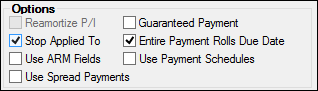
The following paragraphs describe the fields in the Options field group on the Loan Information tab of the Payment Information screen.
|
||||||||||||
Reamortize P/I
Mnemonic: LNAMZ6 |
Check this box if you want to allow an interest-bearing loan tied to prime to calculate a payment which will amortize the loan. For this field to be file maintainable, all the following conditions must be met:
•Loan must be interest-bearing (payment method 6). •Loan cannot use ARM fields. •Loan cannot use payment schedules. •Loan must use Coupon/Bill Code 11 (free-format statement) on the Loans > Account Information > Additional Loan Fields screen. •Loan must have a rate pointer of 1 to 254.
The effective date of the P/I payment will be the first due date greater than or equal to the rate change effective date. This will be true unless a bill has been sent out for that date. If a bill has been created, the new P/I payment will be effective for the next payment due.
If you have several rate changes within a month, the system will calculate the new P/I payment each time the rate changes. The new P/I payment will replace the value in the Next P/I Constant field until a billing for the current month has been created. Once the billing has been created, the newly calculated P/I will be placed in a table. This makes it so the payment doesn't change once the borrower has been notified as to the payment amount.
WARNING: The above-mentioned requirements for the Reamortize P/I field must be set up for a loan prior to file maintaining the field. If the requirements are not set up first, the Reamortize P/I field is not file maintainable.
Also, if the loan is set up for auto pay, the Coupon/Bill Code must continue to be set to "11." If you do not want to send a bill/receipt, you do not need to have a coupon cycle set up. However, if you do want to send the bill/receipt, GOLDPoint Systems suggests that you use an advertising message to indicate that the payment will be automatically paid. |
||||||||||||
Stop Applied To
Mnemonic: LNAPLY |
This checkbox field is used with interest-bearing loans (payment method 6). When this box is checked, if the payment being posted is higher than the actual payment amount, the extra amount will not be added to the Applied to Payment field; the extra amount will automatically be posted to the principal balance instead of being credited toward the next payment due.
Partial payments (payments for less than the full amount) will update the Applied To Payment field. When a partial payment is made, the Applied To Payment field will be updated and will continue to do so until sufficient money has been applied to roll the due date. If the amount paid plus the amount in the Applied To Payment field exceeds the payment due, the due date will roll and the Applied To Payment field will be cleared. |
||||||||||||
Use ARM Fields
Mnemonic: LNRTSN |
This field will only be file maintainable for interest-bearing loans (payment method 6). It is used for creating scheduled rate changes on interest-bearing loans. The default value is unchecked, which indicates that the ARM fields will not be used.
If this box is checked, the system will act like this is an ARM loan (payment method 7). It is from these fields that scheduled rate changes are created. Even though you may access the ARM fields, the system will still use the simple interest calculations for the loan.
Note: If you check this field, you cannot change the Frequency field. |
||||||||||||
Use Spread Payments
Mnemonic: LNSPRD |
Check this box if spread payments (transaction code 690) are allowed on this loan. Spread payments are made through the Loans > Transactions> Make Loan Payment screen or Mass Loan Payments screen. With spread payments, you can designate how much of the transaction will go to interest and how much will go to principal. |
||||||||||||
Guaranteed Payment
Mnemonic: LNGPMT |
This box is selected when a loan is originated from GOLDTrak PC (using field TF_GUARANTEED_PMT_LN). The person originating the loan determines whether the payment is guaranteed. This is an information only field and manually updated. The mnemonic is LNGPMT and it can be included on GOLDWriter and GOLDMiner reports.
An example of a guaranteed payment is a third-party company offering to make loan payments on behalf of their customers. The payment is always made whether or not the customer actually pays their bill to the third-party company, making the payment guaranteed. |
||||||||||||
Entire Payment Rolls Due Date
Mnemonic: LNEPMT |
Checkmark this box if you want this loan to roll the due date when an entire payment is made (the amount collected is greater than or equal to the Next Payment Due). This does not apply if miscellaneous loan fees are collected before principal, interest, and late charges.
The program will compare what was collected to the Next Payment Due minus anything in the Roll Due Date Within field to determine whether a full payment was made.
The LNVESC field is used to track late charges when spreading payments. As payments are spread to the different parts of the loan according to the Payment Application, this field and the other tracking fields will track how much of the partial payment goes to principal and interest, reserves, P/I fees, and late charges.
Note: Miscellaneous loan fees are not included in the full payment calculation.
If a full payment was made, the due date will roll ahead one month. If part of the full payment was applied to late charges, then either the entire amount of the payment or just the principal and interest portion will be credited to the Applied To Payment field, depending on which option you have set.
Note: The amount of late charges paid in one payment or cycle cannot exceed one P/I constant. |
||||||||||||
Use Payment Schedules
Mnemonic: LNPMSC |
This checkbox indicates if there is an alternate payment schedule set up for this account. The default value is not checked (no).
If checked, the system will look to the Payment Schedule list view, located on the Loans > Transactions > CP2 screen, Payment Schedule tab, for the payment amount due and the corresponding payment effective date. |
||||||||||||
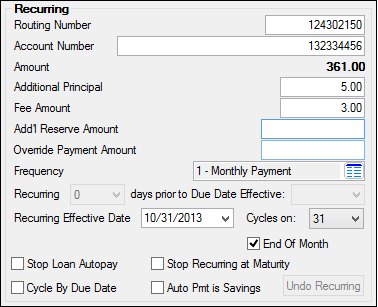
Use the fields in the Recurring field group to set up recurring payments. For step-by-step instructions for setting up recurring payments, see Setting Up Recurring Payments.
You can also set up recurring payments by clicking the EZPay link at the bottom of the screen and setting up recurring payments from there.
This field group changes depending on if you have the FPRA option (Use FPRA for Recurring ACH Payments) set. If this option is not set, this field group looks like the following and the Recurring Information (FPRA) tab is also displayed on the Payment Information screen.
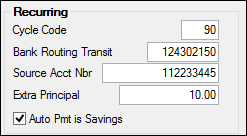
If this option is set, then the Recurring Information tab is not displayed and instead, the Recurring field group looks like the following:
See the following descriptions of the fields found on this field group. |
|||||||||||||
Routing Number
Mnemonic: RAABNK |
Enter the routing number of the financial institution for the recurring payment. After you click <Save Changes>, the system will notify you if the routing number entered is not an approved ABA routing number by displaying an error provider icon |
||||||||||||
Account Number
Mnemonic: RAACH# |
Enter the account number of the financial institution for the recurring payment. |
||||||||||||
Amount
Mnemonic: RAACH$ |
When you click <Start Recurring> to set up a recurring payment record, the system automatically enters the P/I Constant amount in this field. You cannot make changes to this field. However, if the borrower wants to pay more than the P/I Constant, you can enter the additional amount in the Additional Principal field, or you can enter an amount in the Override Payment Amount field to override this default amount.
Note: If this loan has a modified payment schedule set up (using the Loans > Transactions > CP2 screen, Payment Schedule tab), the amount defaulted into the Amount field for recurring payments will reflect the amount from the payment schedule. |
||||||||||||
Additional Principal
Mnemonic: RAOPMT |
If the customer wants to set up additional funds to include in recurring payments, enter that amount in this field. This amount will go directly toward paying down the principal, not the interest. |
||||||||||||
Fee Amount
Mnemonic: RAFAMT |
If your institution charges a fee amount each time a recurring payment occurs, enter that amount in this field. This fee is credited to your General Ledger account set up on the GOLD Services > General Ledger > G/L Account By Loan Type screen each time the recurring payment occurs. |
||||||||||||
Add'l Reserve Amount
Mnemonic: RAR1PM |
If the borrower would like to include any additional amount for reserve payments, enter that amount in this field. This will go toward the Reserve Balance reflected on the Loans > Account Information > Reserves > Account Reserve Detail screen. |
||||||||||||
Override Payment Amount
Mnemonic: RAREQA |
If the customer does not want to pay the P/I Constant amount reflected in the Amount field, you can enter a different amount in this field for the recurring payment. Each time the recurring payment is processed, it will use this amount. |
||||||||||||
Frequency
Mnemonic: LNFREQ |
This field displays the loan payment frequency for the loan. This field is not file maintainable from this field. Use the Frequency field above to make changes to this field. |
||||||||||||
Recurring...days prior to Due Date Effective
Mnemonic: RADYSB |
This field is only used with the following loan frequencies:
13 - Floating Payment 26 - Bi-weekly Payment 52 - Weekly Payment
Select from the Recurring field the number of days prior to the Due Date Effective date that you want the recurring payment to occur.
For example, if you select "2" in the Recurring field, and the Due Date Effective date is set for "10/08/2013," than two days before the new effective Due Date, the system will debit the account entered above, and apply that amount to the loan payment. |
||||||||||||
Recurring Effective Date/Cycles on/End of Month
Mnemonic: RAPCYC |
These fields are only displayed on the screen if you select one of the following loan frequencies:
1 - Monthly Payment 2 - Bi-Monthly Payment 3 - Quarterly Payment 4 - Payment every 4 months 6 - Semi-Annual Payment 12 - Bi-Weekly Payment 24 - Semi-Monthly Payment
When one of the above loan frequencies is selected, the Recurring field is disabled and three new fields are displayed, as shown below:
Recurring Effective Date Enter the date you want the recurring payment to occur every month in this field. If it's a monthly payment, is will be that date every month (e.g., 1, 2, 3, 4, etc.). If it's a bi-monthly payment, if will be the
Cycles on This field displays the day on which recurring payments will be cycled.
Note: Action code 72 will stop an ACH payment from processing until after the action date. Once the action date has passed, the next time the auto payment is set to cycle, it will post the payment and then automatically drop the action code and date. Any attempts to post the payment prior to the action date will be rejected, and the message “NO ACH WITHDRAWALS BEFORE ACTION DATE” will appear on the Afterhours Processing Exceptions Listing (FPSRP013).
Example: A loan has a due date of 5/1. It is set up to cycle on the 10th of each month. An action code 72 with an action date of 6/1 is set up. On 5/10, the system would normally have attempted to process the ACH payment; however, because of the 6/1 action date, the system does not attempt to post the payment and displays it on the Afterhours Processing Exceptions Listing (FPSRP013). On the night of 6/10, the system will attempt to post the payment. Because the action date is in the past, it will post the payment and also delete the action code 72 and associated date.
End Of Month If you check this box, the recurring loan payment will always occur on the last day of the month according to the frequency. |
||||||||||||
Stop Loan Autopay
Mnemonic: RASLAP |
Select this box if you want to stop processing this recurring payment without deleting the record from the system. You might not want to delete the recurring transaction, for example, if you believe the customer may want to resume it at another time. If the customer decides to resume the recurring payment, simply deselect this box. |
||||||||||||
Stop Recurring Maturity
Mnemonic: LNASTP |
Select this box if you want recurring payments to stop when the loan is past the maturity date. If this box is selected, when the loan is past the maturity date, the message “LOAN PAST MATURITY–PAYMENT NOT REQUESTED” will appear on the Afterhours Processing Exceptions Listing (FPSRP013).
Note: Recurring payment transactions will be stopped only if they are greater than the actual maturity date. Transactions effective on the maturity date will still be posted. |
||||||||||||
Cycle By Due Date
Mnemonic: RABYDU |
If you check this box, the Due Date will be used for the date the recurring payment is processed. When you check this box, the Recurring Effective Date fields become disabled, and the Recurring field and days prior to Due Date Effective fields become enabled. You should then select how many days before the Due Date this customer wants the automatic recurring payment processed. |
||||||||||||
Auto Pmt is Savings
Mnemonic: RAACCK |
Select this box if the Account Number entered for this recurring payment is a savings account. |
||||||||||||
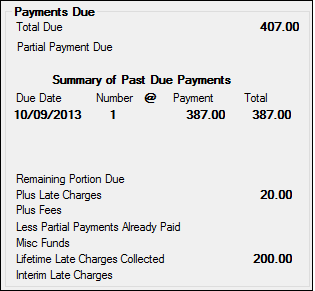
Payments Due field group |
The Payments Due field group on the Loan Information tab of the Payment Information screen displays any past due payments. See the following example of this field group, followed by descriptions of the fields.
|
||||||||||||
Total Due
Mnemonic: CLSTOT |
This field shows the total amount due on the loan to bring it to a current status. It is the sum of all payments due on the loan plus late charges and fees minus partial payments (Applied To Payment) made.
If the loan is past maturity, the message "Loan Payoff Due!" will be displayed in this field. |
||||||||||||
Partial Payment Due
Mnemonic: LNPICN - LNPRTL |
This is a calculated field that displays the amount to bring the loan current. This field is calculated by taking the amount in the P/I Constant field and subtracting the amount in the Applied To Payment field, as follows:
LNPICN - LNPRTL = Partial Payment Due |
||||||||||||
Summary of Past Due Payments
Mnemonics: CLDAT1_0-3, CLCNT1_0-3, CLTOT1_0-3, CLTOT2_0-3
|
These fields display any past due payments and the number of times the payment has been late. These fields allow for four due dates. The three additional due dates are used for graduated payments, adjustable rate mortgages, or whenever the payment is not a fixed amount for the life of the loan. The dates will be broken down by each payment change. If a modified payment schedule has been set up on the Loans > Transactions > CP2 screen, Payment Schedule tab, the modified payment will be displayed here.
For example, a loan is six months delinquent. In that time, the loan has had one payment amount change. For two months, the payment was at $360.00 per month. For the other four months, the loan payment was at $400.00 per month. Two dates will be listed in this column: first for the most recent payment amount, and second for the oldest payment amount.
The Number @ fields show the number of payments owing at (or @) a specific payment amount. If a customer has not made the last six payments due on the loan, and three of the months payments were at $360 and the other three were at $400, then this field would show the loan as three times late at (@) one payment amount, and three times late at (@) the other payment amount.
The Payment amount displays the P/I Constant amount for one frequency.
The Total field displays the total of all payments owed on the loan. It multiplies the payment amount due times the number of payments late. For graduated payments, each payment change will be totaled in these fields. For example, if a loan was late for three payments at a rate of $350 and late for two payments at a rate of $400 dollars, then the total would show as $1050 for the first payment amount, and $800 for the second payment amount. A grand total of payments due, plus late charges and fees, is totaled at the top of this field group. This amount is added to calculate the Total Due field on this screen. |
||||||||||||
Remaining Portion Due
Mnemonic: LNRPDU, LNPDUE |
This field is used in connection with the Roll Due Date Within, Dollars/Percent fields on the Loans > Account Information > Account Detail screen, Payment Detail tab. It stores the remaining unpaid portion of the payment. The amount is then added to the total due on the billing statement (Bill and Receipt, Pmt Mth 0, 6, and 7 (Cycled Billing) (FPSRP003) and Bill and Receipt, Pmt Mth 0, 6, and 7 (Variable Billing) (FPSRP155)).
When payments are posted to the loan, the remaining portion due is paid before the roll limit is checked. So, if the payment minus the remaining portion due is less than the roll limit, the due date will not roll.
Example: The payment sent was $100.00, the remaining due is $30.00, and the limit is $80.00. The system will pay the remaining due leaving $70.00 left, which is less than the roll limit of $80.00. The due date will not roll. Using the same example, but changing the payment amount to $110.00, the system will again pay the remaining due leaving $80.00, which is equal to the roll limit. The due date will roll and the difference between the roll limit and the payment amount will be added to the remaining portion due. |
||||||||||||
Plus Late Charges
Mnemonic: LNLATE |
This is a calculated field that shows the total amount of late charges due on the loan. Late charges come from the Late Charges Due field on the Late/NSF tab on the Account Detail screen. This amount is added to the Plus Fees field on this screen to calculate the Total Due.
See also the Due Date Last Rolled field for information about an option that affects when late charges are assessed. |
||||||||||||
Plus Fees
Mnemonic: LNFEES |
This is a calculated field that shows the total amount of late charges due on the loan. Fees are pulled from the Total Loan Fees field in the Fee Totals field group on the Daily Statistics & Fees tab on the Loans > Account Information > Additional Loan Fields screen. These amounts are added to calculate the Total Due field on this screen. |
||||||||||||
Less Partial Payments Already Paid
Mnemonic: LNPRTL |
This field shows funds paid to the loan but not applied to the loan because it was not a full payment. This amount comes from the Applied To Payment field. This amount will be subtracted to calculate the Total Due. |
||||||||||||
Misc Funds
Mnemonic: LNMISC |
This field shows all miscellaneous funds on the loan. This is a money field entered through a teller transaction only. The use of this field can be determined by your institution. Possible uses are insurance claim funds or rents collected on properties in foreclosure. The Misc Funds field is a memo field for rental accounts (payment method 8). |
||||||||||||
Lifetime Late Charges Collected
Mnemonic: LNLLTC |
This field contains the total late charges collected over the life of the loan. It is updated each time a late charge is assessed or reversed.
Note: An institution option, "Keep Life of Loan Late Charges?" (KLLT), is available. Using this option will prevent the Lifetime Late Charges Collected field from being cleared when performing the Judgment transaction (tran code 2510-02) or when the Bankruptcy transaction (only available on the Loans > Bankruptcy screen) is run. |
||||||||||||
Interim Late Charges
Mnemonic: MRCLCC |
The Interim Late Charges field will appear on this screen only if institution option OP04 UDQG is "Y." This field stores an accumulated amount of late charges collected over a period of time. This field is cleared whenever the following happens:
•An Interest-Only transaction (2600-03) is run.
•A Judgment transaction (2510-02) is run.
•A CP2 (Exception) transaction (2600-00) is run.
The account is brought current (anytime the due date is advanced beyond the transaction date).
This field is used in conjunction with the Applied To Payment field during the "grading" process. |
 before you can save changes. The principal and interest payment will change based on the payment frequency you select from the
 , with a pop-up error that says, "Bank Routing Number not on file." You will need to correct the routing number before you can save the recurring payment.