Users Can Now Choose Trays to Print Checks/Documents |
  

|
Navigation: GOLDTrak PC What's New > GOLDTrak Version 7.9.7 - 7.9.10 >
Users Can Now Choose Trays to Print Checks/Documents |
|
CMP #: 2406
Users can now designate which paper tray is used when printing checks or documents from GOLDTrak PC. Some setup is required before this new option works.
This is a great option if you want to print reports or other documents (such as the pre-check report) from one tray, but use another tray for printing checks. That way, users don't have to load, unload, and reload check paper before printing other documents from the same printer.
We've also added a new option (Show Print Dialog) for office managers to designate whether the Print dialog box will show before the final print.
•When this new option is set to "Yes," when users are printing checks or documents from GOLDTrak PC, the Print dialog box will first appear, where the user can designate a printer or preview the print before actually printing.
•When this new option is set to "No," documents and checks will just print as soon as users click <Print> without first showing the Print dialog.
To setup offices with the new Paper Tray option or Show Print option, complete the following steps:
1.Open GOLDTrak PC Setup.
2.Go to Institution Setup > Institution/Offices from the main menu.
3.Under the institution, select an office to which you want to designate printer settings.
4.Access the Office Options tab.
5.Select the print job (Printer ID) you want to assign to a paper tray.
6.Click <Assign Printer>. A dialog box appears where you can select the printer you want to designate for that type of print job.
7.From the Name drop-down list, select the printer for this print job, then click <OK>. The dialog box will close.
8.From the Paper Tray field, you can then select the tray to use when these types of documents/checks are printed.
9.If you also want to designate the Show Print Dialog appear, set that option to "Yes."
See the following example of these steps:
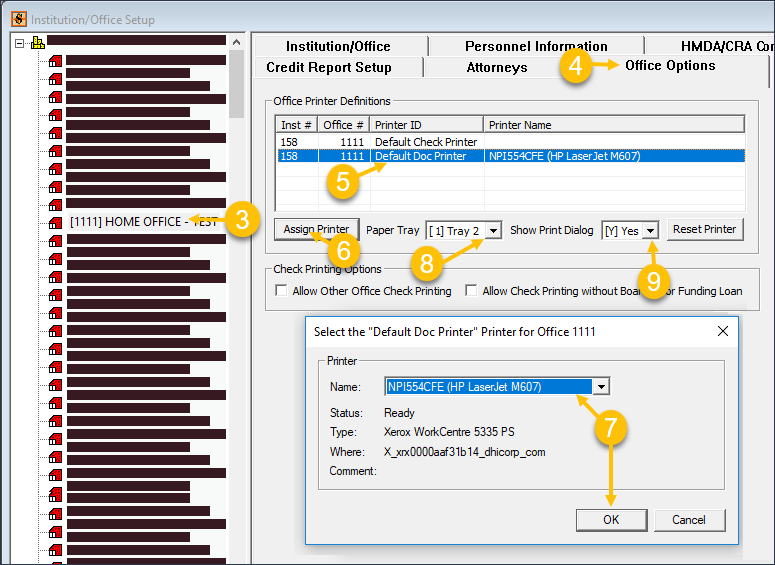
GOLDTrak PC Setup > Institution Setup > Institution/Office Setup > Office Options Screen